Google Flow AI for Product Videos: Real Screens, Better B-Roll
A practical Google Flow workflow for SaaS product videos: keep real screens as proof, generate supporting B-roll and check India-specific delivery constraints.
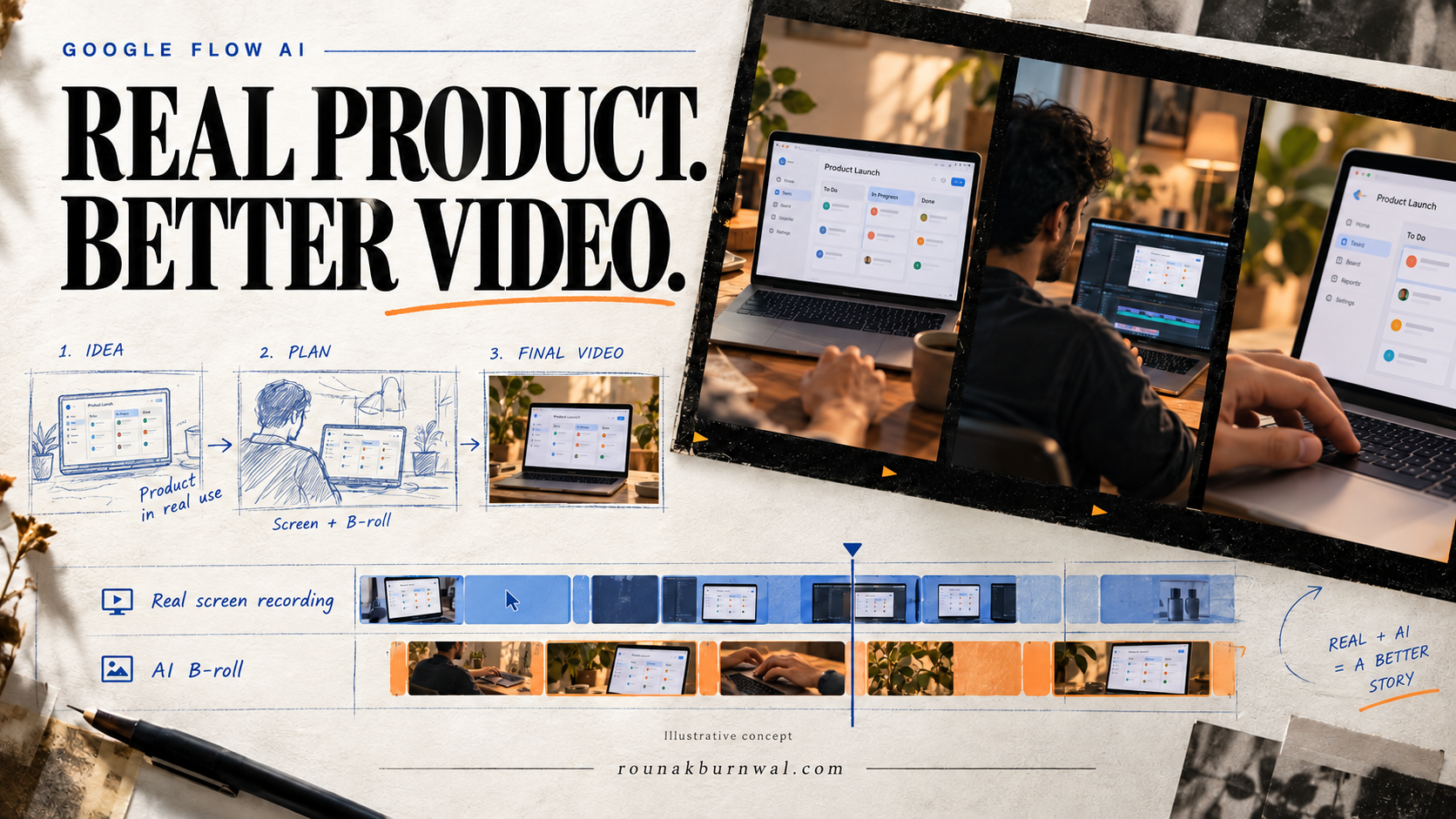
A polished product video should make your software easier to understand—not make it look like a different product. That distinction matters when using Google Flow AI for SaaS launches, automation demos and digital-product promotions.
The practical approach is simple: record the product for proof; generate supporting footage for atmosphere. Keep real interfaces, outputs and pricing intact. Use AI-generated B-roll to connect those moments into a more watchable story.
This guide proposes a production workflow for Indian founders and small teams. The examples are illustrative, not results from a hands-on benchmark. Product documentation was checked on 29 October 2026; features, credit costs and regional rules can change.
Where Google Flow fits in a product video
Flow can create video from prompts, reference assets and frames. Google’s creation guide describes controls for the model, aspect ratio, number of outputs and generation length. Those controls make it useful for preparing specific supporting shots rather than asking one prompt to produce an entire accurate product advertisement. See Google’s video creation guide.
Think of a SaaS video as two layers:
Evidence: the actual screen recording, a genuine workflow, an authentic product asset and a real result from that demonstration.
Presentation: establishing shots, visual metaphors, transitions, music and the arrangement of those evidence clips.
Generative footage belongs mainly in the second layer. A convincing fictional dashboard is not evidence that your app has those features. A generated chart is not a customer result.
Start with one action worth demonstrating
Before opening Flow, write one sentence: “After watching, the viewer should understand how this product helps them do _____.” Choose a task small enough to show clearly: submitting a support question, creating an invoice, reviewing an automation run or organising a content brief.
For a chatbot demonstration, record an actual question and its actual answer. A project such as my AI chatbot is a natural starting point for this kind of real-product walkthrough. The video should show the implementation you have, not capabilities suggested by a cinematic prompt.
Prepare a clean demo account with synthetic data. Hide API keys, private messages, customer details and irrelevant browser tabs. Capture enough footage before and after each action to make clean cuts. Keep a separate note of any waiting time you plan to shorten; editing must not imply an instantaneous result where that would mislead.
A practical five-shot sequence
The following is an illustrative structure, not a fixed timing template. Give each product action enough time to remain readable.
Problem: A restrained workspace shot that establishes the context. Source: Generated B-roll or your own footage. Purpose: Introduce the situation without invented customer claims.
Action: The real cursor completing one important task. Source: Screen recording. Purpose: Show how the product works.
Result: The actual output from that task. Source: Screen recording. Purpose: Supply proof, with readable detail.
Breathing room: A short complementary environment shot. Source: Generated B-roll or your own footage. Purpose: Separate ideas without hiding essential steps.
Next step: The genuine product identity and a clear call to action. Source: Original assets composed in your editor. Purpose: Tell the viewer what to do next.
The opening does not need a spectacular AI scene. A real, recognisable product action can be the strongest hook. If the first shot delays the explanation, cut it.
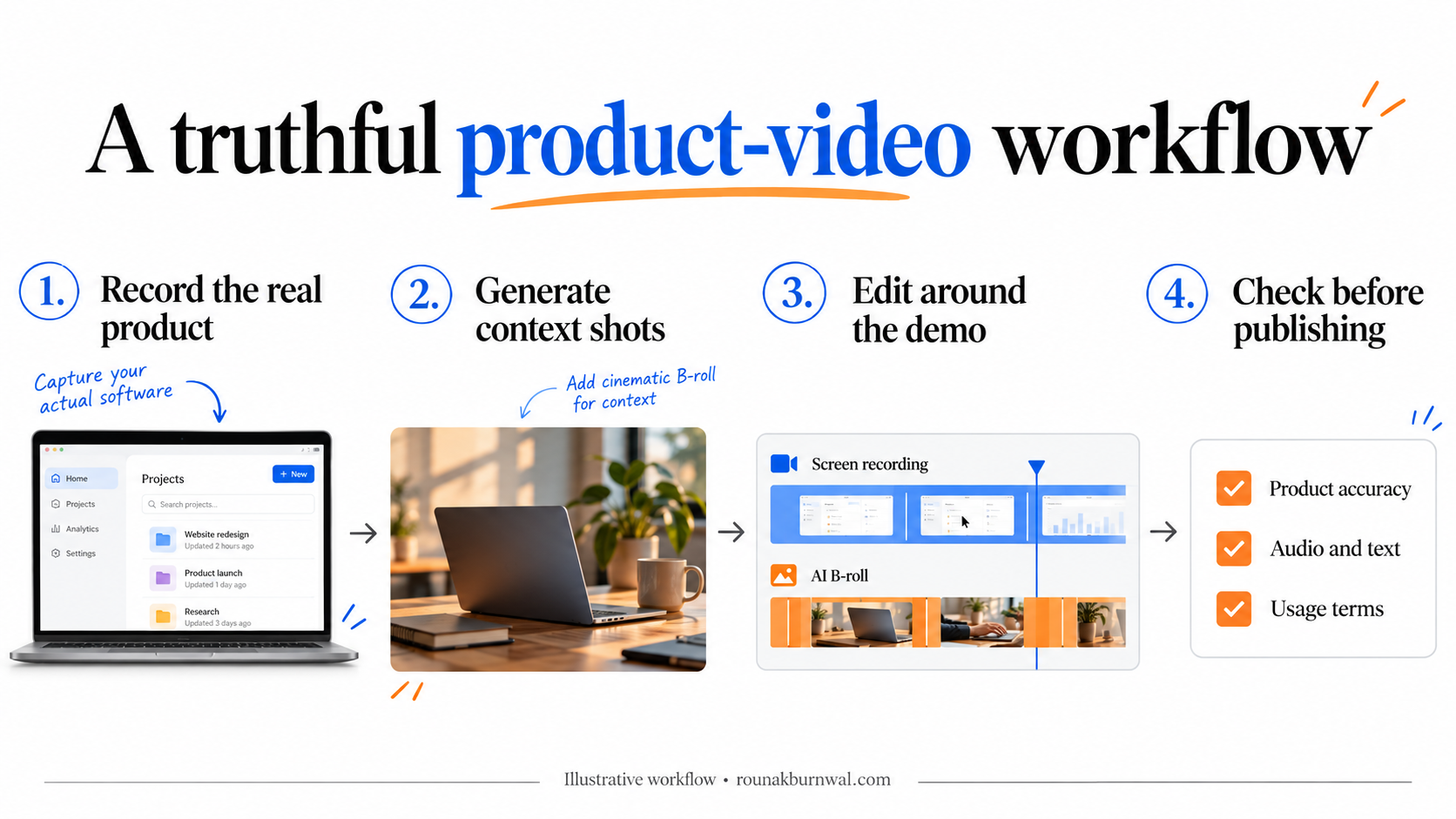
Illustrative workflow: preserve product evidence and use generated visuals as supporting material.
Generate B-roll with a specific editorial job
Write the shot’s purpose before its prompt. “Create something cinematic about AI” is too broad. “Create a quiet two-second transition between the problem and the real demonstration” gives you a useful constraint.
Describe the subject, action, environment, light, framing and camera movement. Request one clear action per shot. Keep screens unreadable or outside the frame when the generated clip is not meant to demonstrate actual software.
Illustrative prompt: workspace context
Close-up of a founder’s hands opening a laptop on a simple home-office desk in daylight. Restrained commercial photography, neutral colours, gentle lateral camera movement. Frame the keyboard and hands; keep the display outside the shot. No logos, no readable text, no dialogue.
Illustrative prompt: transition plate
A clean desk with a closed notebook and a laptop viewed from the side. Soft morning light, subtle shadows and a slow push forward. Leave uncluttered negative space on the right for a product graphic added later. No visible screen content, no brand marks, no people speaking.
These prompts are creative starting points, not guarantees. Inspect hands, object continuity, unwanted text and camera movement in every output. Reject a beautiful clip if it distracts from the product story.
Choose references and models deliberately
Reuse a small, consistent reference set for colour, setting and objects. Only upload assets you are entitled to use. Reference images can guide visual continuity, but they should not be treated as a guarantee that small interface text or logos will remain exact.
Feature support differs by model. Google’s current table distinguishes text-to-video, frames, references, editing and extension support. Confirm the combination you need before generating, rather than assuming a model labelled “Quality” supports every feature. Check the active model, resolution and displayed credit cost in the prompt settings. See the official model and feature matrix.
For genuine product screens, a safer compositing approach is to retain the original screen recording as a separate layer in your editor. Do not regenerate the screen simply to make the surrounding environment more dramatic.
Edit for clarity, not constant movement
Build the timeline from the real demonstration first. Remove confirmed dead space, preserve the meaningful sequence and make the output legible on a phone. Then place supporting B-roll where it adds context or covers a natural transition.
Use modest crops to direct attention to the active control. Avoid zooming so far that viewers cannot tell where they are in the interface. Keep product names, prices and calls to action as editable graphic layers sourced from accurate product information—not generated lettering.
For audio, keep narration understandable and music secondary. Match subtle clicks to visible actions; do not add confirmation sounds for events that never happened. Listen to the complete export with headphones and phone speakers. Generated ambience is optional, not a substitute for a coherent sound mix.
India checks: watermarks, audio and credit budgeting
As checked on 29 October 2026, Google says a visible watermark is automatically applied for users in India who are not on the Google One AI Ultra 20x Plan. Generated outputs also contain invisible SynthID watermarking. Do not assume that any plan with “Ultra” in its name has identical treatment. Confirm your account’s current conditions before promising a particular delivery to a client.
Google directs users to in-product settings for current model costs. Its help also explains that some audio-generation failures prevent the video from being generated and trigger a credit refund. A project setting can instead return silent videos. Check the current Flow access, watermark, credit and audio guidance before production.
Budget for attempts, not just approved shots:
Estimated credits = sum of (planned outputs × displayed credits per output) + a revision allowance
Use separate lines for different model settings. Start with one candidate shot, inspect it and revise the prompt before requesting more outputs. Track actual credits used alongside usable clips; an attractive generation that never makes the timeline still consumed production effort.
A final review before publishing
Product truth: Do all visible features and results exist in the demonstrated product?
Readability: Can a phone viewer follow the important action without pausing?
Continuity: Are there warped objects, unwanted text or abrupt visual changes?
Audio: Is narration clear, with no clipped words or distracting transitions?
Claims: Are pricing, availability and calls to action accurate today?
Rights and disclosure: Are uploaded assets authorised, applicable terms checked and illustrative footage distinguished from product evidence?
Delivery: Have you watched the downloaded file, not only an editor preview?
Keep real recordings, reference files, prompts and approved exports organised so the video can be updated when your interface changes. Google documents project and asset management, including downloads, in its project management guide.
The best use of Google Flow for a product video is not to invent a better-looking product. It is to present the real one more clearly. Start with one truthful demonstration, add only the supporting shots it needs and let the software remain the evidence.